

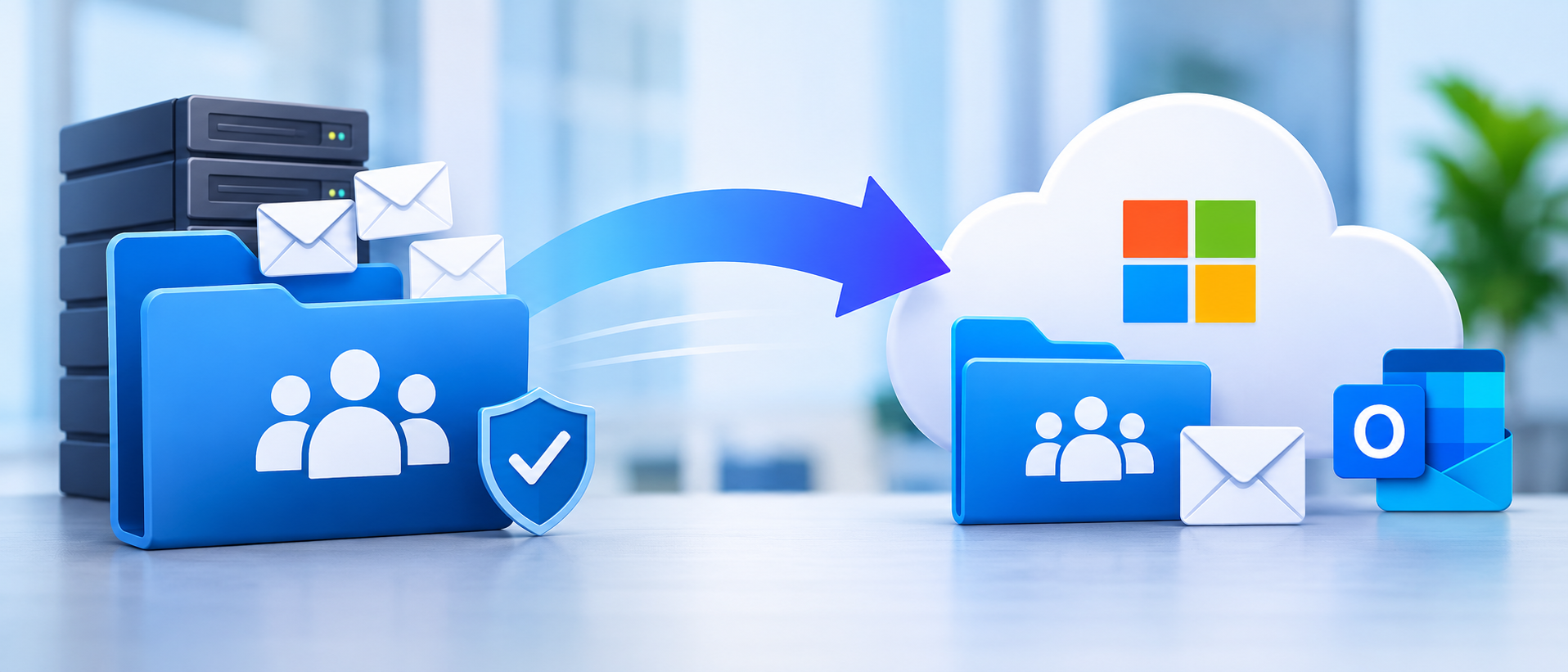
Migrating shared mailboxes to Microsoft 365 is an important part of modernising business email infrastructure. Organisations often rely on shared mailboxes for departments such as sales, customer support, finance, HR, operations, and administration. These mailboxes let multiple employees access and manage emails through a common address without each needing a separate account.
However, moving shared mailboxes to Microsoft 365 involves more than transferring email messages. Businesses must also consider mailbox permissions, delegated access, historical email data, folder structures, calendar information, distribution workflows and post-migration functionality.
A poorly planned migration can result in missing emails, incorrect permissions, inaccessible folders and interruptions to business communication.
If your organisation is moving from an on-premises Exchange environment, another email hosting provider, or an existing Microsoft 365 tenant, understanding how to migrate shared mailboxes to Microsoft 365 can help you avoid these challenges.
This guide explains the complete migration process, including preparation, migration methods, permission management, common challenges, validation, and best practices for a successful business email migration.
What Is a Shared Mailbox in Microsoft 365?
A shared mailbox is an email account that multiple authorised users can access to send, receive, and manage messages using a common email address.
Unlike an individual mailbox, a shared mailbox supports team-based communication rather than personal email management.
For example, a company may use the following shared mailboxes:
- [email protected] – For customer enquiries, quotations and sales communication.
- [email protected] – For technical support requests and customer assistance.
- [email protected] – For invoices, payment confirmations and financial communication.
- [email protected] – For recruitment, employee queries and HR-related communication.
- [email protected] – For general business enquiries.
In Microsoft 365, shared mailboxes are managed through the Exchange admin center and can be accessed by authorised users through Outlook and supported email clients.
The main advantage is that employees can collaborate using a central email address while maintaining individual Microsoft 365 identities.
Important: A shared mailbox generally does not require a separate Microsoft 365 licence when it remains within Microsoft's standard shared mailbox limits and does not require additional licensed features. The users accessing it generally need appropriately licensed Exchange Online accounts. Additional requirements apply to larger mailboxes, archiving and certain advanced features.
Why Do Businesses Migrate Shared Mailboxes to Microsoft 365?
Shared mailbox migration is often part of a broader email modernisation or cloud migration project.
Businesses move their shared mailboxes to Microsoft 365 to improve accessibility, simplify administration, and establish a more consistent email management environment.
Here are some of the major reasons.
1. Centralised Email Management
Businesses often create separate email accounts for different departments as they grow. Managing these accounts across multiple servers or email hosting platforms can become complicated.
Microsoft 365 provides a centralised environment where administrators can manage shared mailboxes, assign permissions, and control access through Exchange Online.
2. Improved Team Collaboration
Multiple employees can access a shared mailbox and work with the same incoming messages.
For example, a customer support team can use a common mailbox to review customer enquiries, respond to requests, and maintain communication history.
This reduces dependence on individual employee accounts and makes departmental communication easier to manage.
3. Better Accessibility
With Microsoft 365, authorised employees can access their shared mailboxes through supported Outlook applications and web access, subject to organisational access policies.
This makes it easier for distributed teams to manage departmental communication.
4. Reduced Email Infrastructure Maintenance
Organisations operating their own Exchange servers must maintain server infrastructure, storage, security updates and backups.
Moving to Exchange Online reduces the need to maintain an on-premises email platform, although organisations must still manage identity, security, retention and compliance requirements.
5. Stronger Security and Administration
Microsoft 365 provides administrative controls for managing mailbox access, authentication policies, and organisational security.
Administrators can assign access based on employee responsibilities rather than sharing mailbox credentials across a department.
6. Better Integration with Microsoft 365 Applications
Shared mailboxes can work alongside Microsoft 365 applications and services, helping businesses establish a more connected working environment.
For organisations already using Microsoft Teams, SharePoint, OneDrive and Outlook, consolidating email management within Microsoft 365 can simplify the overall technology environment.
Understanding the Different Types of Shared Mailbox Migration
Before starting the migration, it is important to identify where your existing shared mailboxes are hosted.
The migration approach depends on the source email platform, the number of mailboxes, the amount of stored data and the permissions currently assigned to users.
1. On-Premises Exchange to Microsoft 365
Businesses running Microsoft Exchange Server can migrate shared mailboxes to Exchange Online using Microsoft's supported Exchange migration approaches.
Depending on the Exchange Server version and infrastructure, organisations may use:
- Hybrid remote mailbox migration.
- Cutover migration.
- Staged migration, where supported.
- Exchange migration batches.
For organisations with an existing Exchange hybrid environment, remote move migration is often an appropriate approach because it supports a controlled transition of mailboxes to Exchange Online.
2. Another Microsoft 365 Tenant to a New Microsoft 365 Tenant
Some organisations migrate shared mailboxes when they acquire another business, restructure their IT environment or consolidate multiple Microsoft 365 tenants.
This is known as cross-tenant mailbox migration.
The process requires preparation of the source and destination tenants, identity mapping, migration configuration and permission planning.
An important consideration is that shared mailbox permissions and other configuration details must be reviewed separately. Do not assume every permission or setting will transfer exactly as it existed in the source tenant.
3. Other Email Hosting Platforms to Microsoft 365
Businesses using third-party email hosting services may also want to migrate their departmental email accounts to Microsoft 365.
Depending on the source platform, IMAP migration or a specialised third-party migration solution may be appropriate.
However, IMAP-based migration generally transfers email messages rather than the complete shared mailbox configuration. Calendar data, contacts, delegated permissions, folder-level access and other platform-specific settings may require separate migration or reconstruction.
This distinction is particularly important when migrating customer support, sales, and finance mailboxes that multiple employees depend on.
What Should You Prepare Before Migrating Shared Mailboxes to Microsoft 365?
Preparation is one of the most important stages of a successful migration.
Moving mailbox data without documenting the existing configuration can create unnecessary problems after migration.
Before you migrate shared mailboxes to Microsoft 365, complete the following checks.
1. Create an Inventory of Existing Shared Mailboxes
Start by identifying all shared mailboxes within your existing email environment.
Create a migration inventory containing:
- Shared mailbox name.
- Primary SMTP email address.
- Current email hosting platform.
- Total mailbox size.
- Number of stored messages.
- Number of associated users.
- Full Access permissions.
- Send As permissions.
- Send on Behalf permissions.
- Existing aliases and forwarding rules.
- Folder structure.
- Business department or owner.
This inventory helps administrators understand the migration scope and identify mailboxes that require additional attention.
For example, a support mailbox with 20 users and several years of customer communication may require more detailed preparation than a recently created departmental mailbox.
2. Review Mailbox Size and Licensing Requirements
Microsoft 365 has specific storage and licensing requirements for shared mailboxes.
According to Microsoft's Exchange Online documentation, an unlicensed shared mailbox supports up to 50 GB of mailbox storage.
If a shared mailbox requires more than 50 GB, an Exchange Online Plan 2 licence is generally required to increase its primary mailbox capacity to 100 GB.
Additional licensing may also be necessary for archive storage, litigation holds and certain advanced security or compliance features.
Microsoft Learn+1
Before migration, review:
- Current mailbox size.
- Expected mailbox growth.
- Archive mailbox requirements.
- Retention and compliance policies.
- Required Microsoft 365 licences.
Important: Do not remove an existing licence simply because the destination mailbox is intended to be shared. Complete the migration and conversion requirements first, then validate the licensing configuration.
3. Document Existing Mailbox Permissions
Mailbox permissions are critical because multiple employees may depend on the same shared address.
Microsoft 365 provides three important permission types.
Full Access
Allows authorised users to open the shared mailbox and access its contents, including messages and folders.
However, Full Access alone does not automatically allow users to send messages from that mailbox.
Send As
Allows authorised users to send emails that appear to come directly from the shared mailbox.
For example, an employee can send a message that displays [email protected] as the sender.
Send on Behalf
Allows an authorised user to send messages on behalf of the shared mailbox.
Recipients can see that the message was sent by an individual on behalf of the shared address.
Documenting these permissions before migration helps ensure that employees retain the correct access after the transition.
4. Verify Your Microsoft 365 Environment
Before creating destination shared mailboxes, confirm that the Microsoft 365 tenant is ready.
Check the following:
- Microsoft 365 tenant is active.
- Exchange Online service is available.
- Required user accounts exist.
- Custom business domains are verified.
- DNS configuration is planned.
- Appropriate administrator permissions are available.
- Mailbox naming conventions are defined.
- Security and authentication policies are configured.
If the organisation is using directory synchronisation or an Exchange hybrid environment, administrators should also consider how recipient objects will be managed after migration.
5. Plan the Migration Schedule
Avoid migrating every shared mailbox simultaneously without considering business requirements.
Identify which departments depend most heavily on shared email communication.
A practical migration sequence could be:
- Internal administration mailboxes.
- Human resources mailboxes.
- Finance and accounts mailboxes.
- Sales and marketing mailboxes.
- Customer support mailboxes.
This sequence is only an example. The actual order should depend on mailbox dependencies, business criticality and migration complexity.
For customer-facing mailboxes, plan the final migration and mail-routing changes during a period of lower business activity.
Step-by-Step: How to Migrate Shared Mailboxes to Microsoft 365
The following process describes a practical migration workflow. The exact migration steps depend on whether the source is Exchange Server, another Microsoft 365 tenant or a third-party email platform.
Step 1: Create the Destination Shared Mailboxes
First, prepare the destination shared mailboxes in Microsoft 365.
To create a shared mailbox:
- Sign in to the Microsoft 365 admin center.
- Navigate to Teams and groups.
- Select Shared mailboxes.
- Click Add a shared mailbox.
- Enter the mailbox display name.
- Enter the required email address.
- Select Create.
For example, if you are migrating a customer support mailbox, you might create:
Similarly, create the required shared mailboxes for sales, accounts, HR, and other departments.
If you are using a migration method that requires a destination mailbox object to be prepared differently, follow the relevant Microsoft migration documentation rather than creating a duplicate mailbox.
Migration tip: Confirm that the destination email addresses and aliases are correct before proceeding. Incorrect recipient configuration can affect mail routing and delivery.
Step 2: Configure the Required Mailbox Permissions
After preparing the destination mailboxes, identify which employees need access.
You can manage shared mailbox membership through the Microsoft 365 admin center or Exchange admin center.
For each shared mailbox:
- Open the shared mailbox settings.
- Navigate to Members.
- Add the employees who require access.
- Configure Full Access permissions.
- Assign Send As permissions where required.
- Configure Send on Behalf permissions if necessary.
- Review the final permission assignments.
For example:
| Employee role | Required permission |
|---|---|
| Customer support executives | Full Access |
| Support team leader | Full Access and Send As |
| Department manager | Full Access and Send on Behalf |
| IT administrator | Administrative access as required |
Assign permissions according to actual job responsibilities rather than providing unrestricted access to everyone.
Step 3: Select the Appropriate Migration Method
This is where the technical migration process differs depending on your existing email platform.
For on-premises Exchange environments
Use an appropriate Exchange migration approach, such as remote move migration in a hybrid deployment or another supported migration method.
The administrator must configure the required migration endpoint, permissions, and migration batches.
Microsoft documents the permissions required for migration administrators, including Full Access, Receive As, and other relevant administrative permissions depending on the migration type.
Microsoft Learn
For another Microsoft 365 tenant
Use Microsoft's cross-tenant mailbox migration process when the organisation meets the applicable prerequisites.
The migration requires source and target tenant preparation, migration relationships, and appropriate recipient configuration.
Microsoft confirms that shared mailboxes can be moved through cross-tenant mailbox migration, but administrators must account for how permissions are handled in the destination tenant.
Microsoft Learn
For third-party email hosting
Evaluate whether IMAP migration or a dedicated migration tool supports the source platform.
Before choosing a tool, verify whether it can migrate:
- Historical email messages.
- Folder structures.
- Sent items.
- Attachments.
- Shared mailbox data.
- Calendar and contact information, where required.
- Relevant metadata.
Remember that migrating email messages does not automatically recreate the original shared mailbox permissions.
Step 4: Migrate Historical Email Data
Once the migration environment is ready, start transferring the historical mailbox data.
The objective is to preserve the existing communication history while moving the mailbox contents into Exchange Online.
Depending on the migration method, this can involve migration batches, synchronisation processes or a third-party migration application.
Pay particular attention to:
- Inbox messages.
- Sent Items.
- Drafts.
- Deleted Items, where required.
- Custom folders and subfolders.
- Email attachments.
- Important historical correspondence.
- Existing archive data, where supported.
For business-critical shared mailboxes, migrate a small test group first.
This helps identify problems before the remaining departmental mailboxes are transferred.
Step 5: Configure Email Routing and DNS Settings
After preparing the destination environment, ensure that email routing is configured correctly.
For organisations moving their complete email environment to Microsoft 365, this may involve updating DNS records.
Important records include:
MX record: Directs incoming email to the designated email hosting platform.
SPF record: Helps identify authorised email-sending sources for the domain.
DKIM: Adds a cryptographic signature to outgoing messages to help recipients verify email authenticity.
DMARC: Provides instructions for handling messages that fail authentication checks and supports reporting.
DNS changes should be planned as part of the overall email migration rather than treated as an isolated shared mailbox task.
If only shared mailboxes are being migrated while individual mailboxes remain on another platform, mail routing requires additional planning. Do not change the domain's MX record until the overall mail-flow design has been validated.
Step 6: Perform the Final Synchronisation and Cutover
Once the initial mailbox data transfer is complete, perform the final synchronisation required by your migration method.
This helps capture messages that arrived or changed after the initial migration pass.
Before completing the cutover:
- Confirm the migration batch status.
- Review migration errors.
- Check the latest incoming messages.
- Validate source and destination mailbox data.
- Confirm mail-routing configuration.
- Communicate the transition to affected employees.
The cutover should be planned carefully to minimise the risk of missed messages or duplicate mail handling.
Step 7: Test Shared Mailbox Access in Outlook
After migration, ask the authorised employees to test their shared mailboxes.
Testing should cover both access and functionality.
For example:
- Open Outlook.
- Confirm that the shared mailbox appears or add it if necessary.
- Open the Inbox.
- Check historical email messages.
- Open important attachments.
- Test sending an email using Send As.
- Test Send on Behalf if configured.
- Verify access to relevant folders.
- Check calendar access if applicable.
- Confirm that new messages are being received.
Do not consider the migration complete simply because the mailbox appears in Outlook.
The actual business workflows must work as expected.
Step 8: Secure and Decommission the Old Mailboxes
After validating the migrated mailboxes, complete the post-migration activities.
These include:
- Confirming that all required data has been migrated.
- Verifying the new permissions.
- Disabling unnecessary legacy access.
- Reviewing old forwarding rules.
- Confirming mail-flow stability.
- Maintaining the required backup and retention arrangements.
- Documenting the completed migration.
- Decommissioning the old email infrastructure only when appropriate.
For hybrid Exchange environments, follow the supported recipient-management and decommissioning procedures. Do not simply delete on-premises mailbox objects that are still required for directory synchronisation or recipient management.
Common Challenges When Migrating Shared Mailboxes to Microsoft 365
Even with proper planning, shared mailbox migration can involve technical and operational challenges.
Understanding these issues beforehand helps IT administrators reduce migration failures and avoid disruption to business communication.
1. Missing Mailbox Permissions
One of the most common issues is that employees cannot access a migrated shared mailbox or send emails using its address.
This usually happens when permissions are not correctly recreated or assigned in the destination environment.
Solution: Maintain a detailed permission inventory before migration and verify Full Access, Send As, and Send on Behalf permissions after migration.
2. Incomplete Email Migration
Sometimes, certain messages, attachments, or folders do not appear in the destination mailbox.
Possible reasons include:
- Migration errors.
- Unsupported source mailbox configurations.
- Oversized messages.
- Corrupted email items.
- Incorrect migration permissions.
- Incomplete synchronisation.
Solution: Review migration reports, investigate skipped or failed items, and perform the required synchronisation again.
3. Incorrect Mailbox Size and Licensing
A shared mailbox exceeding its permitted storage limit may encounter sending and receiving restrictions.
Solution: Check mailbox size before migration and assign the appropriate Exchange Online licence when required.
4. Outlook Not Displaying the Shared Mailbox
Employees may find that the migrated shared mailbox does not automatically appear in Outlook.
This can happen because of permission propagation delays, Outlook configuration, or cached mailbox information.
Solution: Verify permissions, allow time for changes to propagate, and troubleshoot the Outlook profile or mailbox configuration if necessary.
5. Email Delivery Problems
Incorrect DNS records, incomplete mail routing, or misconfigured connectors can affect email delivery.
Solution: Validate MX, SPF, DKIM, and DMARC configurations where applicable. Also test inbound and outbound email flow before completing the migration.
6. Duplicate or Missing Email Messages
Running multiple migration processes without a clear synchronisation strategy can result in duplicate messages or inconsistent mailbox contents.
Solution: Use a controlled migration process, document synchronisation stages, and perform final validation before decommissioning the source environment.
Best Practices for a Successful Shared Mailbox Migration
A successful migration is not just about transferring email data. It is about ensuring that employees can continue working without losing access to important business communication.
Consider these best practices when planning your migration.
1. Start with a Pilot Migration
Before migrating all departmental mailboxes, select one or two non-critical shared mailboxes for testing.
A pilot migration helps identify permission issues, data inconsistencies, and configuration problems before they affect the entire organisation.
2. Maintain a Permission Mapping Document
Record the existing mailbox permissions and map them to the destination Microsoft 365 environment.
This is particularly important for organisations with multiple departments and large teams.
3. Prioritise Business-Critical Mailboxes
Identify which shared mailboxes support essential business operations.
Customer support, finance and sales mailboxes often contain communication that employees need throughout the working day.
Plan their migration carefully to minimise operational disruption.
4. Validate Data Before Decommissioning the Source
Never remove access to the original mailbox environment immediately after migration.
First, confirm that the required historical emails, attachments, folders, and permissions are available in Microsoft 365.
5. Apply Security Best Practices
Shared mailbox access should be granted through individual employee accounts.
Avoid sharing the underlying mailbox credentials between employees.
Administrators should also review:
- Multi-factor authentication policies.
- Conditional Access requirements.
- Unnecessary mailbox permissions.
- Former employee access.
- External forwarding rules.
- Security and audit requirements.
6. Document the Migration Process
Maintain a migration record containing:
- Source and destination mailbox addresses.
- Migration completion status.
- Migration errors and resolutions.
- Assigned permissions.
- Mailbox size.
- Licensing configuration.
- Post-migration test results.
This documentation is useful for future audits, troubleshooting, and mailbox administration.
Shared Mailbox Migration Checklist
Before completing your shared mailbox migration to Microsoft 365, use the following checklist to ensure that all important activities are covered.
- Inventory all existing shared mailboxes.
- Record mailbox sizes and existing permissions.
- Review Microsoft 365 licensing requirements.
- Verify the destination Microsoft 365 tenant.
- Create or prepare destination mailbox objects.
- Configure migration endpoints and permissions.
- Select the appropriate migration method.
- Migrate historical email messages and folders.
- Perform final synchronisation.
- Validate email routing and DNS configuration.
- Test Full Access and Send As permissions.
- Verify attachments and important historical emails.
- Test Outlook access with authorised employees.
- Review security and retention requirements.
- Document migration results and decommission the old environment when safe.
Completing these checks helps reduce migration errors, protect business email data, and ensure that employees can access their shared mailboxes after migration.
Shared Mailbox Migration vs. Regular Mailbox Migration
Although both processes involve moving email data to Microsoft 365, shared mailbox migration has additional considerations.
| Migration factor | Regular mailbox | Shared mailbox |
|---|---|---|
| Primary user | Individual employee | Multiple employees |
| Access management | Individual account | Delegated permissions |
| Send permissions | Personal identity | Send As / Send on Behalf |
| Collaboration | Primarily individual | Team-based |
| Permission mapping | Generally simpler | Requires detailed planning |
| Testing | User login and email access | Multiple users and sending permissions |
| Business dependency | Individual workflows | Departmental workflows |
This is why organisations should not treat shared mailbox migration as an ordinary email account transfer.
The migration strategy must account for the way employees access and use departmental email.
Frequently Asked Questions About Migrating Shared Mailboxes to Microsoft 365
1. Can I migrate shared mailboxes directly to Microsoft 365?
Yes. Shared mailboxes can be migrated to Microsoft 365 using supported migration methods, depending on the source environment.
For Exchange Server environments, supported Exchange migration approaches can be used. Cross-tenant migrations are also supported for eligible Microsoft 365 environments.
For other email hosting platforms, the migration approach depends on the source platform and available migration tools.
2. Do shared mailboxes require a Microsoft 365 licence?
Not necessarily.
A shared mailbox can generally operate without an individual licence when its storage does not exceed 50 GB, and it does not require additional licensed features.
However, users accessing the shared mailbox need appropriately licensed Exchange Online accounts.
A shared mailbox requiring up to 100 GB of primary mailbox storage generally needs an Exchange Online Plan 2 licence. Additional licences may be required for archiving, litigation holds and advanced compliance features.
Microsoft Learn+1
3. Will existing emails and attachments be migrated?
Yes, email messages and attachments can be migrated when supported by the selected migration method.
However, administrators should verify that the migration process supports the source mailbox structure and data types.
They should also investigate failed or skipped items before completing the migration.
4. Will existing shared mailbox permissions transfer automatically?
Not in every migration scenario.
Permission handling depends on the source platform and migration method.
For example, Microsoft documents that cross-tenant migration retains specific store permissions, while other access configurations may need separate review and recreation.
Therefore, administrators should document and validate all required permissions after migration.
Microsoft Learn+1
5. Can multiple employees access the same shared mailbox after migration?
Yes.
Multiple authorised employees can access the same shared mailbox using their individual Microsoft 365 accounts.
Administrators can assign Full Access, Send As, and Send on Behalf permissions according to business requirements.
6. Can I migrate a shared mailbox without losing historical emails?
Yes, provided the selected migration method supports the source data and the migration completes successfully.
A pilot migration, migration reports, and post-migration data validation help minimise the risk of losing historical communication.
Always verify important folders, attachments, and older messages before decommissioning the source mailbox.
7. Can I migrate shared mailboxes from Google Workspace to Microsoft 365?
Yes, but the migration requires additional planning.
Google Workspace does not manage shared mailboxes in the same way as Exchange Online. Businesses may use delegated Gmail access, Google Groups, or other collaborative email arrangements.
The migration team must first identify how each source mailbox is implemented and determine the appropriate Microsoft 365 destination.
Email data, permissions, aliases, and other configurations may need separate migration or reconstruction.
8. How long does it take to migrate shared mailboxes to Microsoft 365?
There is no fixed migration duration.
The time depends on:
- Number of shared mailboxes.
- Total mailbox data volume.
- Internet bandwidth.
- Source email platform.
- Migration tool and method.
- Mailbox complexity.
- Permission requirements.
- Migration errors and synchronisation requirements.
A small migration may be completed relatively quickly, whereas a large enterprise migration involving multiple departments may require several migration phases.
9. Can I migrate shared mailboxes without interrupting business communication?
Migration can be planned to minimise disruption, although uninterrupted operation cannot be guaranteed in every environment.
Pre-synchronisation, staged migration, careful mail-flow planning and scheduled cutover activities can help reduce downtime.
10. What happens to the old shared mailbox after migration?
The original mailbox should remain available according to the migration and retention plan until the destination has been fully validated.
After confirming successful data migration, permissions, email delivery, and business functionality, administrators can follow the appropriate decommissioning process.
Final Thoughts: Make Your Shared Mailbox Migration to Microsoft 365 Seamless
Shared mailboxes are an important part of everyday business communication. They help departments manage customer enquiries, internal requests, financial communication, and operational workflows through common email addresses.
However, migrating them successfully requires more than moving email messages from one platform to another.
Businesses must carefully plan mailbox preparation, migration methods, permissions, licensing, email routing, and post-migration validation.
A structured migration approach helps organisations protect historical communication, maintain departmental access and reduce disruption during the transition.
Whether you are moving from on-premises Exchange, consolidating multiple Microsoft 365 tenants or migrating from another email hosting provider, proper planning is essential for a reliable outcome.
If your organisation is planning a business email migration, working with an experienced migration team can help reduce technical complexity and ensure that important email data and configurations are handled correctly.
Spectrum Future Tech helps businesses modernise their email infrastructure through structured migration planning, implementation and post-migration support. Explore our Email Migration Services to understand how your organisation can move to a more scalable and manageable email environment.