

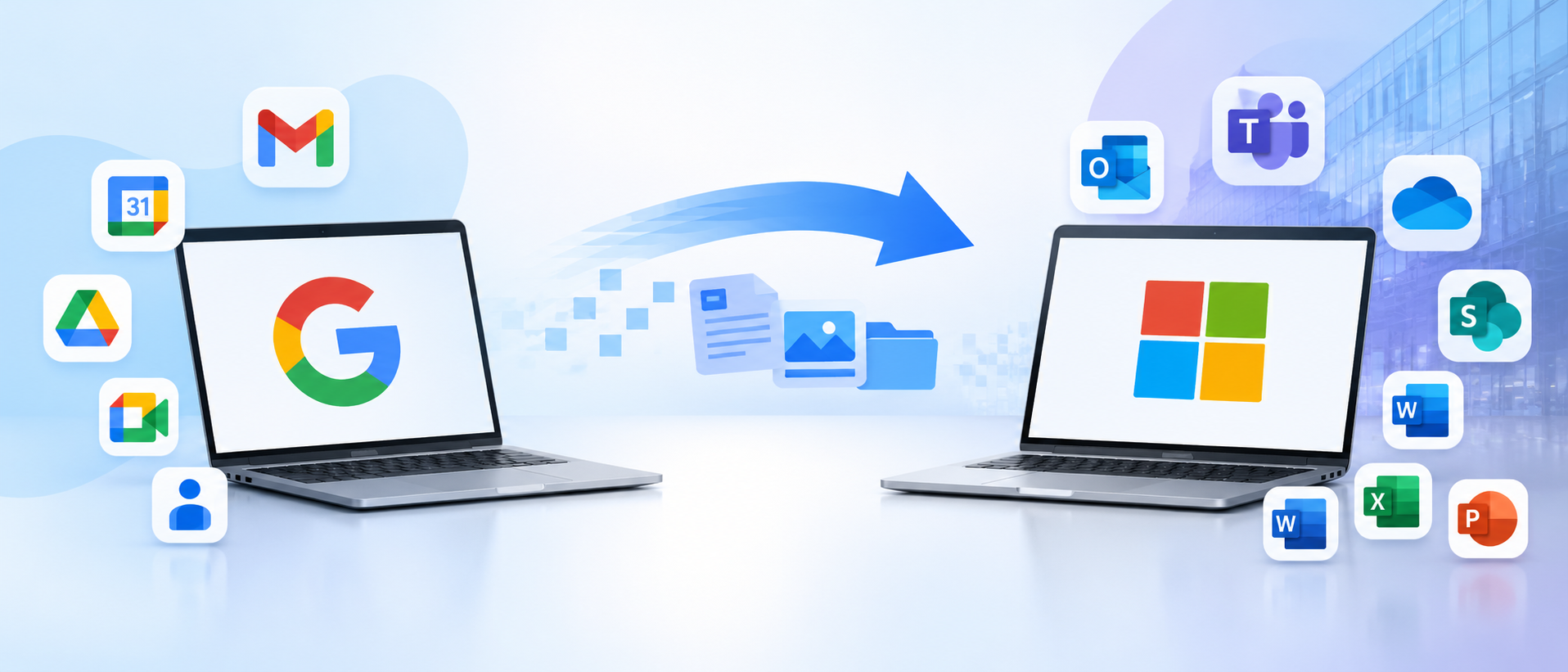
Moving your business from Google Workspace to Microsoft 365 is a significant technology decision. Whether your organization wants to use Outlook for business email, Microsoft Teams for collaboration, OneDrive for file storage, or the broader Microsoft 365 productivity suite, a well-planned migration can help make the transition smooth and secure.
However, Google Workspace to Microsoft 365 Migration involves more than simply moving emails from Gmail to Outlook. Businesses also need to consider calendars, contacts, user accounts, shared resources, domain settings, security policies, and employee onboarding.
A poorly planned migration can lead to missing emails, incorrect permissions, duplicate data, login problems, or interruptions to business communication.
This guide explains how to migrate from Google Workspace to Microsoft 365, what data can be transferred, how the migration process works, common challenges, and the best practices businesses should follow to protect their information.
Whether you manage a small business or a large enterprise, this guide will help you understand the migration process and prepare for a successful transition.
Quick Summary
- Google Workspace to Microsoft 365 Migration involves transferring business email, calendars, contacts, and other relevant business data.
- Microsoft's migration tools support the transfer of mail, calendars, and contacts from Google Workspace, subject to supported configurations and migration limitations.
- Before migrating, businesses should verify their domain, create Microsoft 365 accounts, assign appropriate licenses, and prepare Google Workspace permissions.
- A phased migration with pilot testing helps reduce downtime and identify issues before the full transition.
- Google Drive files, shared drives, and other collaboration data require separate planning and migration steps.
- DNS records, including MX, SPF, DKIM, and DMARC, should be configured carefully to maintain reliable email delivery and security.
- Data validation, employee training, and post-migration monitoring are essential for a successful transition.
What Is Google Workspace to Microsoft 365 Migration?
Google Workspace to Microsoft 365 Migration is the process of transferring an organization's business communication, user data, and selected collaboration resources from Google's cloud-based productivity platform to Microsoft's cloud environment.
Google Workspace includes services such as:
- Gmail for business email
- Google Calendar for scheduling
- Google Contacts for contact management
- Google Drive for cloud storage
- Google Docs, Sheets, and Slides for productivity
- Google Meet and Google Chat for communication
Microsoft 365 offers corresponding services, including:
- Outlook and Exchange Online for business email
- Microsoft Teams for communication and collaboration
- OneDrive for individual cloud storage
- SharePoint for document management and team collaboration
- Word, Excel, and PowerPoint for productivity
- Microsoft 365 security and administration tools
During the migration, businesses transfer supported information into the relevant Microsoft 365 services and configure the new environment to meet their operational requirements.
The exact scope depends on the organization's needs, source data, licensing, and migration method.
Why Are Businesses Migrating from Google Workspace to Microsoft 365?
Businesses choose Microsoft 365 for different operational, technical, and collaboration requirements. The decision is not necessarily about one platform being universally better than the other. It is about choosing the environment that best supports the organization's workflows.
Here are some common reasons businesses consider switching.
1. Better Integration with Microsoft Office Applications
Many organizations rely heavily on Microsoft Word, Excel, PowerPoint, and Outlook.
Microsoft 365 provides an integrated environment for these applications, allowing employees to work with documents, spreadsheets, presentations, and business email through connected services.
For businesses that already depend on Microsoft Office applications, moving to Microsoft 365 can simplify workflows and reduce the need to manage separate productivity tools.
2. Centralized Business Communication
Microsoft 365 brings business email, meetings, messaging, and collaboration together through Outlook and Microsoft Teams.
Employees can manage meetings, communicate with colleagues, share files, and collaborate on documents within a connected business environment.
3. Enterprise Collaboration and Document Management
Microsoft SharePoint and OneDrive provide options for managing business documents, sharing files, and collaborating across departments.
Organizations can structure documents by team, department, project, or business function.
This can be particularly useful for companies with multiple teams, remote employees, and complex document-sharing requirements.
4. Business Security and Administration
Microsoft 365 offers administrative and security capabilities that help organizations manage users, access, devices, and business information.
Depending on the selected subscription and configuration, businesses may use features such as:
- Multi-factor authentication (MFA)
- Conditional Access
- Data loss prevention
- Microsoft Defender security capabilities
- Retention and compliance policies
- Centralized user and device management
These features depend on licensing and configuration. Businesses should review their security requirements before selecting a Microsoft 365 plan.
5. Supporting Business Growth
As an organization grows, it may need more structured collaboration, document management, user administration, and security controls.
Microsoft 365 provides a range of business and enterprise plans that organizations can evaluate as their requirements change.
What Data Can Be Migrated from Google Workspace to Microsoft 365?
One of the most important parts of planning a Google Workspace to Microsoft 365 Migration is understanding which information can be transferred and where it will go.
Not every Google Workspace service is migrated through the same process.
Here is a practical overview:
| Google Workspace service | Microsoft 365 destination | Migration consideration |
|---|---|---|
| Gmail | Outlook / Exchange Online | Email messages and supported mailbox data |
| Google Calendar | Outlook / Exchange Online | Calendar events and supported calendar information |
| Google Contacts | Outlook / Exchange Online | Contact information |
| Google Drive | OneDrive / SharePoint | Requires a separate file migration process |
| Shared Drives | SharePoint / Teams | Requires planning for ownership and permissions |
| Google Docs | Word | File conversion or compatibility considerations |
| Google Sheets | Excel | Formatting and formula compatibility should be checked |
| Google Slides | PowerPoint | Layout and feature compatibility should be checked |
| Google Meet | Microsoft Teams | Meeting and collaboration workflows need to be reconfigured |
| Google Groups | Microsoft 365 groups / distribution lists | Requires reviewing membership and intended functionality |
Important: Microsoft's Google Workspace migration process supports the migration of mail, calendars, and contacts. Google Drive and shared-drive content should be handled separately using an appropriate file migration approach. Some Google-specific features, permissions, and document behaviours may not transfer exactly as they work in the original environment.
Before starting, create a migration inventory that identifies the data your organization needs to move, retain, archive, or leave behind.
Google Workspace vs Microsoft 365: Key Differences
Understanding the differences between the two platforms helps businesses plan their migration more effectively.
| Feature | Google Workspace | Microsoft 365 |
|---|---|---|
| Business email | Gmail | Outlook / Exchange Online |
| Cloud storage | Google Drive | OneDrive |
| Team collaboration | Google Docs and shared drives | SharePoint and Microsoft Teams |
| Word processing | Google Docs | Microsoft Word |
| Spreadsheets | Google Sheets | Microsoft Excel |
| Presentations | Google Slides | Microsoft PowerPoint |
| Video meetings | Google Meet | Microsoft Teams |
| Calendar | Google Calendar | Outlook Calendar |
| Administration | Google Admin Console | Microsoft 365 Admin Center |
| Identity management | Google identity services | Microsoft Entra ID |
The right platform depends on your organization's existing applications, employee workflows, security requirements, and long-term technology strategy.
Things to Prepare Before Google Workspace to Microsoft 365 Migration
Preparation is one of the most important stages of any business email migration project.
Before moving data, organizations should review their existing Google Workspace environment and prepare the Microsoft 365 destination.
1. Audit Your Existing Google Workspace Environment
Start by reviewing the current Google Workspace setup.
Identify:
- Total number of active users
- Inactive and suspended accounts
- Mailbox sizes
- Email aliases
- Google Groups
- Shared mailboxes or delegated access arrangements
- Calendar-sharing permissions
- Contacts and important business resources
- Google Drive and shared-drive data
- Retention and compliance requirements
This audit helps determine the migration scope and identify potential issues before the transfer begins.
2. Select the Right Microsoft 365 Subscription
Choose a Microsoft 365 plan based on the organization's requirements.
Consider:
- Number of employees
- Exchange Online mailbox requirements
- Desktop Office application requirements
- Microsoft Teams usage
- OneDrive and SharePoint storage needs
- Security and compliance requirements
- Device management requirements
Make sure every user who needs an Exchange Online mailbox has an appropriate license.
3. Verify Your Business Domain
Your business email address should ideally remain unchanged after migration.
For example:
Before migration: [email protected]
After migration: [email protected]
To achieve this, add your existing business domain to Microsoft 365 and complete domain ownership verification.
Microsoft typically provides a TXT record that you must add to your domain's DNS settings.
Important: Domain verification and email routing are separate activities. Do not change your MX records prematurely. Plan the final email routing switch after the migration is ready.
4. Create Microsoft 365 User Accounts
Create the required user accounts in Microsoft 365 before transferring mailbox data.
Make sure:
- Every employee has a corresponding Microsoft 365 account.
- Email addresses match the intended destination addresses.
- Appropriate licenses are assigned.
- Mailboxes are provisioned.
- Aliases and additional addresses are planned.
- Administrative access is available.
Accurate user mapping helps prevent emails from being transferred to the wrong destination mailbox.
5. Review Google Workspace Permissions
Microsoft 365 migration requires appropriate access to the source Google Workspace environment.
Depending on the selected migration method, administrators may need to configure API access, project permissions, domain-wide delegation, or other required permissions.
Follow the Microsoft guide to Google Workspace migration prerequisites and configuration rather than assuming that ordinary administrator access is sufficient.
6. Create a Backup and Recovery Plan
Although migration tools are designed to transfer supported data, businesses should not rely on migration software as their only protection against data loss.
Before migration:
- Review existing backup policies.
- Export or back up critical business information where appropriate.
- Identify important legal and compliance records.
- Document existing mailbox and file structures.
- Establish a recovery and rollback plan.
- Keep the original Google Workspace environment available during validation.
A backup strategy provides an additional layer of protection if migration issues occur.
Step-by-Step Google Workspace to Microsoft 365 Migration Process
Once preparation is complete, businesses can begin the migration.
The following process provides a practical framework for moving from Google Workspace to Microsoft 365.
Step 1: Plan the Migration Strategy
First, decide how the migration will be carried out.
There are several possible approaches:
Small business migration: A small organization may be able to use Microsoft's built-in migration tools with a straightforward user and mailbox structure.
Phased migration: Larger organizations may migrate users in batches based on departments, teams, or business locations.
Complex enterprise migration: Organizations with large data volumes, complex permissions, multiple domains, or compliance requirements may need specialist migration tools and professional implementation support.
The migration strategy should consider:
- Number of users
- Total mailbox and file data
- Internet bandwidth
- Business working hours
- Downtime tolerance
- Security requirements
- Migration complexity
Microsoft provides an overview of the available approaches in its guide to choosing a Microsoft 365 mailbox migration path.
Step 2: Set Up Microsoft 365
Prepare the Microsoft 365 environment before transferring information.
The key activities include:
- Create or configure the Microsoft 365 tenant.
- Verify the organization's business domain.
- Create user accounts.
- Assign the required licenses.
- Provision Exchange Online mailboxes.
- Configure administrative roles.
- Review security settings.
- Prepare the required migration permissions.
This stage ensures that the destination environment is ready to receive migrated information.
Step 3: Configure Google Workspace for Migration
Next, prepare Google Workspace to allow Microsoft 365 to access the required data.
Depending on Microsoft's current migration workflow, administrators may need to:
- Create or configure a Google Cloud project.
- Enable the required APIs.
- Configure the required access permissions.
- Set up domain-wide delegation where required.
- Authorize the migration application.
- Confirm that the required Google Workspace accounts are accessible.
These steps allow the migration service to communicate with Google Workspace and retrieve supported data.
For the technical setup, follow Microsoft's Google Workspace migration configuration instructions.
Always follow the official prerequisites for the selected migration method.
Step 4: Map Google Workspace Users to Microsoft 365 Accounts
User mapping is essential for accurate mailbox migration.
For example:
| Google Workspace account | Microsoft 365 account |
|---|---|
| [email protected] | [email protected] |
| [email protected] | [email protected] |
| [email protected] | [email protected] |
| [email protected] | [email protected] |
Check every account carefully.
Pay particular attention to:
- Different usernames
- Email aliases
- Shared addresses
- Former employee accounts
- Departmental mailboxes
- Duplicate or inactive accounts
If the source and destination account names differ, maintain a documented mapping file.
Step 5: Start a Pilot Migration
Before migrating every employee, select a small group of users for testing.
A pilot migration helps identify potential problems without affecting the entire organization.
Test users should represent different mailbox sizes, departments, and usage patterns.
Check:
- Email messages and attachments
- Inbox and folder structure
- Calendar events
- Contacts
- Supported rules and settings
- Delegated access where applicable
- Outlook sign-in and usability
Document any issues and resolve them before starting the main migration.
Step 6: Migrate Emails, Calendars, and Contacts
After successful pilot testing, begin migrating the remaining users.
Microsoft's Exchange admin center provides a Google Workspace migration workflow that supports batch migration of mail, calendars, and contacts, subject to the configured migration method and its limitations.
A phased approach can make the process easier to manage.
For example:
- Batch 1: IT and administration
- Batch 2: Finance and accounts
- Batch 3: Sales and marketing
- Batch 4: Operations and customer support
- Batch 5: Remaining employees
Monitor migration progress and review error reports for each batch.
For a more detailed explanation of the process, refer to Microsoft's instructions for migrating Google Workspace mailboxes to Microsoft 365.
Do not assume that a completed migration status means every item has been transferred perfectly. Validate the migrated information.
Step 7: Migrate Google Drive and Shared Drive Data
Email migration and file migration are separate workstreams.
If your organization uses Google Drive extensively, plan the transfer to OneDrive and SharePoint separately.
A typical file migration process includes:
- Audit Google Drive and shared-drive content.
- Identify file owners and access permissions.
- Map users and shared drives to OneDrive or SharePoint destinations.
- Review unsupported or Google-specific file formats.
- Select the appropriate migration tool.
- Transfer files in planned batches.
- Validate file counts, content, and permissions.
- Confirm that employees can access their required documents.
Google Docs, Sheets, and Slides may require conversion or compatibility checks when moving into Microsoft Office formats.
Do not assume that all sharing links, ownership arrangements, and permissions will transfer exactly as they existed in Google Workspace.
Step 8: Configure DNS Records and Email Routing
Once the migration is ready for the final transition, configure your domain's DNS records to route email to Microsoft 365.
Important DNS records include:
MX Record: Directs incoming email to the Microsoft 365 mail system.
SPF Record: Helps identify authorized servers that can send email using your domain.
DKIM: Adds a digital signature to outgoing email to help receiving systems verify message authenticity.
DMARC: Defines how receiving systems should handle messages that fail SPF or DKIM authentication checks.
Autodiscover: Helps Outlook clients discover the correct Exchange Online configuration.
Before making changes, review your existing DNS configuration and plan the transition carefully.
Avoid publishing conflicting SPF records. If your business uses third-party email platforms or marketing systems, make sure their legitimate sending services are included in the appropriate SPF and DKIM configuration.
Also remember that DNS propagation and caching can affect how quickly different systems recognize changes.
Step 9: Configure Outlook and Microsoft Teams
After the migration, employees need to access their new Microsoft 365 environment.
Help users:
- Sign in to their Microsoft 365 accounts.
- Configure Outlook on desktop and mobile.
- Verify email sending and receiving.
- Check calendars and contacts.
- Set up Microsoft Teams.
- Access OneDrive and SharePoint.
- Configure multi-factor authentication.
- Review important collaboration settings.
Provide clear instructions so employees can resume their daily work without unnecessary confusion.
Step 10: Validate the Migration
Data validation is a critical part of the migration process.
Do not close the project immediately after transferring the data.
Compare the source and destination environments to confirm that the required information is available.
A practical validation checklist includes:
- Email messages are present.
- Important attachments are accessible.
- Mail folders and labels have been reviewed.
- Calendar events are available.
- Contacts have been transferred.
- Required aliases work.
- Employees can send and receive emails.
- Outlook works on supported devices.
- Shared files are accessible.
- Permissions have been reviewed.
- DNS records are configured correctly.
- Security and authentication settings are working.
Keep Google Workspace available until the organization has completed validation and confirmed that no required information or service remains dependent on the old environment.
Common Challenges During Google Workspace to Microsoft 365 Migration
Even with proper planning, organizations may encounter technical and operational challenges.
Understanding these problems in advance can help reduce migration risks.
1. Missing Emails or Attachments
Some messages may fail to migrate because of unsupported content, message-size limits, permissions, or source-system restrictions.
How to avoid it:
- Review mailbox migration reports.
- Identify unusually large mailboxes.
- Test different mailbox types during the pilot.
- Compare important messages and attachments.
- Investigate failed or skipped migration items.
2. Calendar Migration Issues
Calendar data may require additional attention because Google Calendar and Outlook do not always handle events and sharing settings identically.
Recurring meetings, external invitations, time zones, and delegated calendars should be tested.
How to avoid it:
- Review important recurring events.
- Verify time-zone settings.
- Test calendar sharing.
- Check delegated access.
- Confirm that critical meetings appear correctly in Outlook.
3. Incorrect User Mapping
If the source and destination accounts are mapped incorrectly, information may be transferred to the wrong mailbox.
How to avoid it:
- Maintain a verified user mapping sheet.
- Check primary email addresses.
- Review aliases and shared addresses.
- Test the mapping with pilot users.
- Confirm account ownership before migration.
4. Email Delivery Problems
Incorrect MX, SPF, DKIM, or other DNS configurations can cause email delivery or authentication problems.
How to avoid it:
- Review existing DNS records.
- Plan the email routing cutover.
- Configure the required Microsoft 365 records.
- Validate SPF, DKIM, and DMARC.
- Test inbound and outbound email after the transition.
5. Google Drive Permission Issues
Google Drive sharing permissions and Microsoft 365 access controls work differently.
A file that was previously shared with a Google Group may not automatically receive equivalent access in SharePoint.
How to avoid it:
- Audit shared-drive permissions.
- Map Google Groups to suitable Microsoft 365 groups.
- Identify file owners.
- Review sensitive documents.
- Test access with actual user accounts.
6. Employee Adoption Challenges
Employees may be familiar with Gmail, Google Calendar, and Google Meet. Moving to Outlook and Microsoft Teams can require changes to everyday workflows.
How to avoid it:
- Provide onboarding sessions.
- Share Outlook setup instructions.
- Explain how to use Teams.
- Train employees on OneDrive and SharePoint.
- Provide post-migration support.
Best Practices for a Successful Google Workspace to Microsoft 365 Migration
A successful migration depends on more than selecting the right software. It requires planning, communication, testing, and continuous monitoring.
Here are some important practices to follow.
1. Avoid Migrating Everything at Once
A phased migration helps reduce the impact of unexpected issues.
Start with a small pilot group, review the results, and then migrate additional users in planned batches.
2. Keep the Original Environment Available
Do not cancel Google Workspace immediately after starting or completing the data transfer.
Keep the source environment available until email delivery, data completeness, user access, and business workflows have been verified.
3. Prioritize Business-Critical Accounts
Some accounts are more important than others.
For example, finance, management, customer support, and sales teams may depend on historical email and calendar information.
Identify these accounts early and give them appropriate migration and validation priority.
4. Maintain a Detailed Migration Checklist
Document each migration activity, responsible person, completion status, and any issues.
This improves accountability and makes it easier to identify unfinished work.
5. Protect Business Data
Use appropriate access controls, administrator permissions, secure authentication, and backup procedures.
Avoid sharing administrator credentials or migration files containing sensitive information unnecessarily.
6. Communicate with Employees
Inform employees about:
- Migration dates
- Expected changes
- New login instructions
- Outlook configuration
- Microsoft Teams access
- Support contact details
Clear communication reduces confusion and helps employees adapt faster.
7. Monitor the Environment After Migration
Continue monitoring email delivery, user access, security alerts, and migration-related issues after the transition.
A successful cutover is the beginning of the new environment's operational phase, not the end of the project.
How Long Does Google Workspace to Microsoft 365 Migration Take?
The migration timeline depends on the number of users, mailbox sizes, total file volume, internet bandwidth, migration method, and complexity of the organization's environment.
A small business with a limited number of mailboxes may complete its core email migration relatively quickly. A larger organization with extensive Google Drive data, complex permissions, multiple domains, and compliance requirements may need a longer implementation period.
The following is an illustrative planning estimate, not a guaranteed migration duration.
| Migration stage | Illustrative duration |
|---|---|
| Initial audit and planning | 1–3 days |
| Microsoft 365 setup | 1–2 days |
| Google Workspace preparation | 1–3 days |
| Pilot migration and testing | 1–2 days |
| Main email migration | Depends on data volume and users |
| Google Drive and shared-drive migration | Depends on file volume and complexity |
| DNS cutover and validation | 1–2 days |
| User onboarding and support | 1–3 days |
Some activities can run in parallel. However, businesses should not rush the testing, validation, or final cutover stages.
DIY Migration vs Professional Google Workspace to Microsoft 365 Migration Services
Businesses often have two choices: perform the migration internally or work with a professional migration provider.
The right approach depends on the organization's technical capabilities, data volume, security requirements, and available resources.
| Factor | DIY Migration | Professional Migration |
|---|---|---|
| Planning | Managed internally | Supported by migration specialists |
| Technical setup | Internal IT team | Experienced implementation team |
| User mapping | Managed internally | Structured mapping and validation |
| Migration monitoring | Internal responsibility | Specialist monitoring and reporting |
| Troubleshooting | Depends on internal expertise | Professional technical support |
| Security planning | Internal responsibility | Guided security configuration |
| Employee onboarding | Internal team | Can include onboarding assistance |
| Project management | Managed internally | Structured migration coordination |
When Should You Choose DIY Migration?
DIY migration may be suitable when:
- Your organization has a small number of users.
- Your mailbox structure is straightforward.
- Your IT team understands Microsoft 365 administration.
- You have sufficient time for testing and troubleshooting.
- Your data migration requirements are limited.
When Should You Choose Professional Migration Support?
Professional support may be more appropriate when:
- You have a large number of employees.
- Your organization handles business-critical email.
- You have complex mailbox and permission structures.
- You need to migrate large volumes of Google Drive data.
- You have strict security or compliance requirements.
- You want a structured migration plan with dedicated technical support.
Professional Email migration services can help organizations plan the transition, configure the destination environment, transfer supported data, validate results, and reduce the operational burden on internal IT teams.
Why Choose Spectrum Future Tech for Email Migration?
Moving business communication to a new platform requires technical expertise, careful planning, and attention to data security.
Spectrum Future Tech helps businesses approach cloud and email migration projects with a focus on operational continuity, secure data handling, and structured implementation.
When planning a Google Workspace to Microsoft 365 Migration, businesses should look for a migration partner that understands:
- Business email migration requirements
- Microsoft 365 and Exchange Online configuration
- Google Workspace administration
- Mailbox and user mapping
- DNS and email authentication configuration
- Data validation and migration reporting
- Post-migration support
A well-managed migration should help employees transition to the new environment while minimizing unnecessary disruption to business operations.
If your organization is planning to move from Google Workspace to Microsoft 365, explore our Email migration services to understand how professional migration support can help.
Final Thoughts
A successful Google Workspace to Microsoft 365 Migration is not just about transferring emails from Gmail to Outlook. It involves preparing the new environment, protecting business information, managing user accounts, migrating calendars and contacts, transferring files, configuring DNS records, and helping employees adapt to new tools.
The most effective approach is to plan the migration carefully, test it with a small group of users, move data in manageable stages, and validate everything before retiring the old environment.
For businesses that want to Migrate Business Emails to Microsoft 365 while reducing technical complexity and operational disruption, professional migration support can make the process easier to manage.
With the right planning and implementation strategy, your organization can transition to Microsoft 365 with greater confidence and build a more connected digital workplace.
Planning to move your business from Google Workspace to Microsoft 365? Explore Spectrum Future Tech's Email migration services to learn how your organization can plan a secure and structured migration.
Frequently Asked Questions (FAQs)
1. Can I migrate from Google Workspace to Microsoft 365 without losing emails?
Yes. Google Workspace supports migration to Microsoft 365 through Microsoft's migration tools and other supported migration solutions. However, no migration process should be assumed to be error-free. Proper preparation, pilot testing, migration reports, and post-migration validation are important to reduce the risk of missing data.
2. How do I migrate Google Workspace to Microsoft 365?
Start by auditing your Google Workspace environment, preparing Microsoft 365 accounts, verifying your domain, and configuring the required migration permissions. Then run a pilot migration, transfer mailboxes in batches, migrate files separately, update DNS records, and validate the destination environment.
3. Can I migrate Gmail emails to Outlook?
Yes. Gmail messages can be migrated to Outlook through Exchange Online using supported Google Workspace migration methods. The method should be selected according to your organization's mailbox requirements and whether calendars and contacts must also be transferred.
4. Can I migrate Google Calendar to Microsoft 365?
Yes. Microsoft's Google Workspace migration process supports calendar migration. However, organizations should validate recurring events, time zones, calendar sharing, and other important settings after migration.
5. Can I migrate Google Contacts to Outlook?
Yes. Google Workspace contacts can be migrated to Microsoft 365 using supported migration workflows. After migration, verify important contact details and check that employees can access their contacts in Outlook.
6. Can I migrate Google Drive to OneDrive?
Yes. Google Drive files can be migrated to Microsoft 365 using an appropriate file migration process. Personal Drive content generally maps to OneDrive, while shared-drive content may be moved to SharePoint or another suitable destination.
7. Will my business email address change after migration?
Not necessarily. Your organization can generally continue using the same custom business domain and email addresses after moving to Microsoft 365.
For example, [email protected] can remain the same. The email routing configuration must be updated as part of the migration.
8. Will employees experience downtime during migration?
A carefully planned migration can minimize disruption. Depending on the migration method, users may continue receiving email in Google Workspace while existing data is synchronized to Microsoft 365. The final DNS cutover and client configuration still require careful planning and testing.
9. Can I migrate multiple Google Workspace users at once?
Yes. Microsoft's Google Workspace migration workflow supports migration batches, allowing administrators to migrate multiple users in stages. This makes it easier to manage larger organizations and control the migration schedule.
10. Do I need to migrate Google Drive separately?
Yes. Email, calendar, and contact migration should be treated separately from Google Drive and shared-drive migration. Files, permissions, ownership, and Google-specific document formats require their own migration and validation plan.
11. Should I cancel Google Workspace immediately after migration?
No. Keep Google Workspace available until you have confirmed that the required data has been migrated, email is being delivered correctly, users can access Microsoft 365, and important business workflows are working as expected.
12. Should I hire a professional Google Workspace to Microsoft 365 migration company?
It depends on your organization's size and technical requirements. Small businesses with simple environments may be able to manage migration internally. Organizations with large mailboxes, complex permissions, substantial file data, or strict compliance needs may benefit from professional migration support.